mirror of
https://github.com/infiniflow/ragflow.git
synced 2026-04-21 19:27:47 +08:00
 8ad47bf242
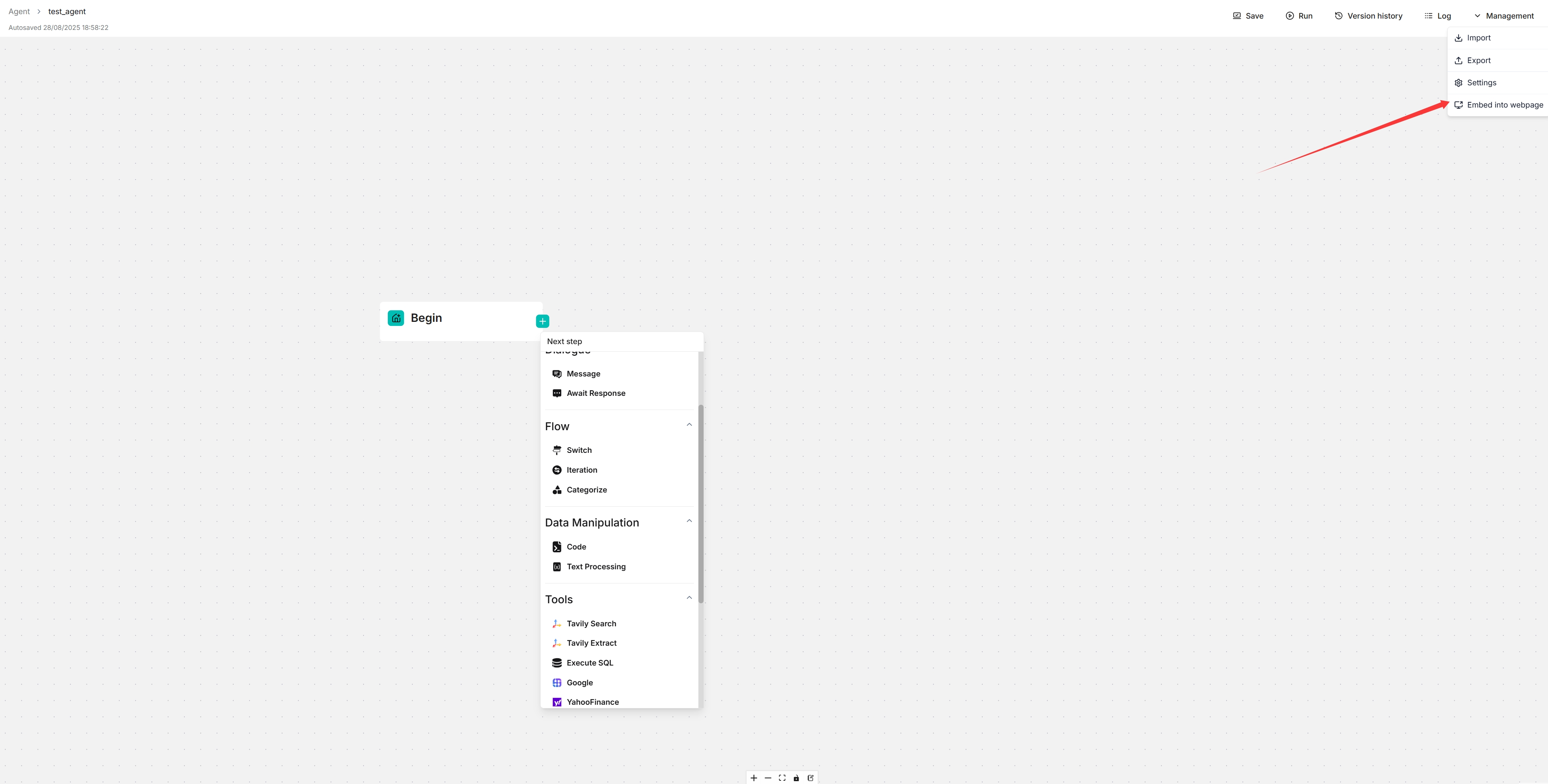
- Add new button in agent management dropdown to open agent in new tab
- Implement token-based authentication for shared agent access
- Add translations for 9 languages (en, zh, zh-tw, de, fr, it, ru,
pt-br, vi)
- Keep existing 'Embed into webpage' functionality intact

### What problem does this PR solve?

This allows users to open agents in a separate tab to work in background
while continuing to use other parts of the application.

<img width="1920" height="1080" alt="image"
src="https://github.com/user-attachments/assets/ca1719c8-2f00-4570-a730-1321fa0bfd57"
/>
<img width="254" height="222" alt="image"
src="https://github.com/user-attachments/assets/b3dd6d9f-b7e7-46b0-83e7-f0ea86e7b156"
/>
<img width="1920" height="1080" alt="image"
src="https://github.com/user-attachments/assets/e94e99f9-9039-43f7-b2d9-862b9448630c"
/>

### Type of change

- [x] New Feature (non-breaking change which adds functionality)
24 lines
1.3 KiB
Markdown
24 lines
1.3 KiB
Markdown
---
|
|
sidebar_position: 30
|
|
slug: /embed_agent_into_webpage
|
|
sidebar_custom_props: {
|
|
categoryIcon: LucideMonitorDot
|
|
}
|
|
---
|
|
# Embed Agent into webpage
|
|
|
|
You can use iframe to embed an agent into a third-party webpage.
|
|
|
|
1. Before proceeding, you must [acquire an API key](../models/llm_api_key_setup.md); otherwise, an error message would appear.
|
|
2. On the **Agent** page, click an intended agent to access its editing page.
|
|
3. Click **Management > Embed into webpage** on the top right corner of the canvas to show the **Embed into webpage** dialog.
|
|
4. Configure your embed options:
|
|
- **Embed Type**: Choose between Fullscreen Chat (traditional iframe) or Floating Widget (Intercom-style)
|
|
- **Theme**: Select Light or Dark theme (for fullscreen mode)
|
|
- **Hide avatar**: Toggle avatar visibility
|
|
- **Enable Streaming Responses**: Enable streaming for widget mode
|
|
- **Locale**: Select the language for the embedded agent
|
|
5. Copy the generated iframe code and embed it into your webpage.
|
|
6. **Chat in new tab**: Click the "Chat in new tab" button to preview the agent in a separate browser tab with your configured settings. This allows you to test the agent before embedding it.
|
|
|
|
 |